
Storefront Analytics: See Why Shoppers Leave, Without Cookies

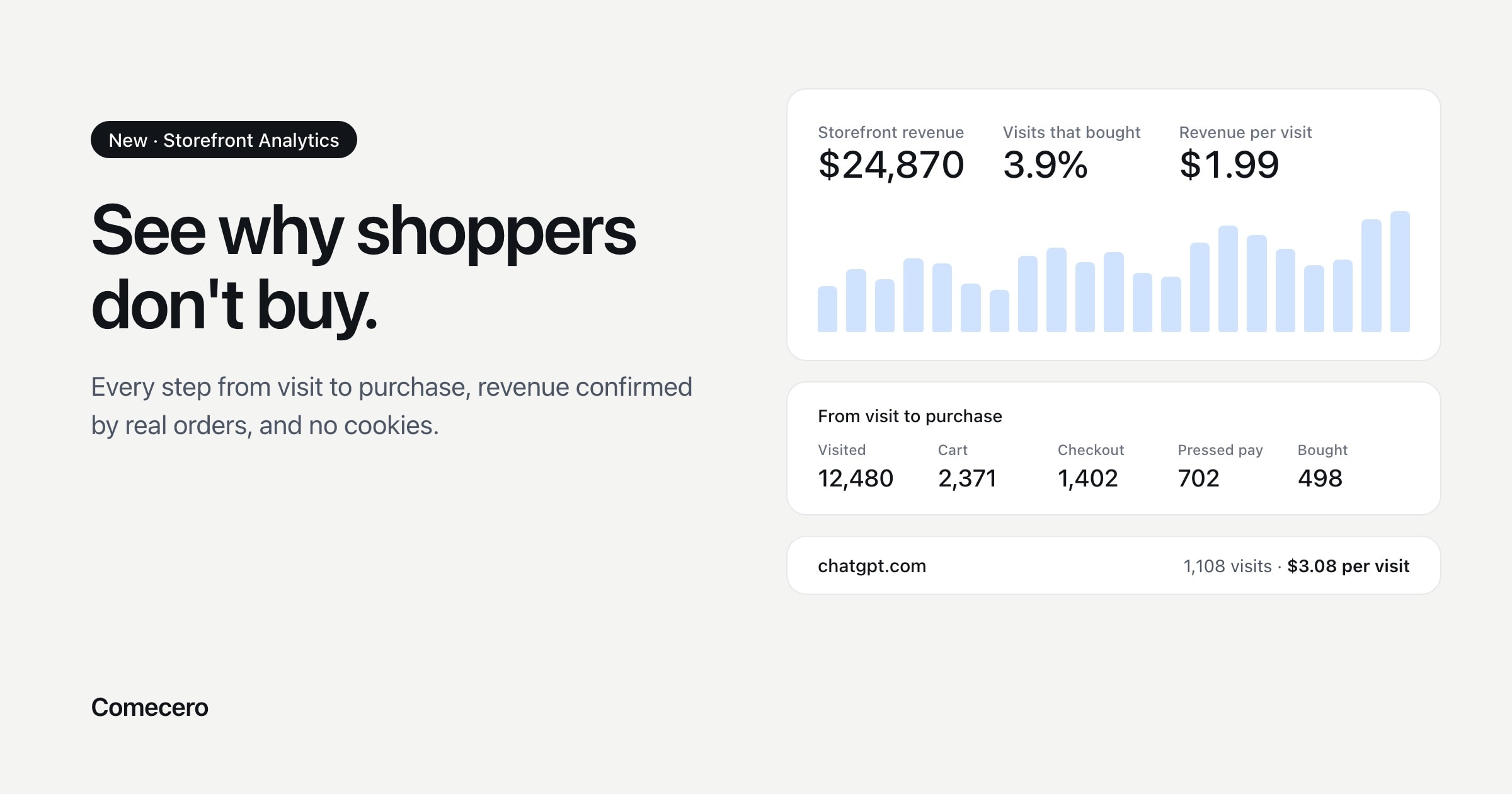
Storefront Analytics shows every step from visit to purchase, why checkouts fail, and what each traffic source earns. No cookies and nothing to install.
Storefront Analytics: See Why Shoppers Leave, Without Cookies
Most store owners can tell you how many people visited last week. Very few can tell you why two out of three shoppers who started checkout never paid, or which traffic source actually brings in money rather than just clicks.
That gap is what Storefront Analytics closes. It's a new report inside the Comecero dashboard that follows shoppers from their first page to the receipt, shows where and why they stopped, and puts a confirmed revenue number next to every source, product and page. It works on every Comecero storefront with nothing to install, and it doesn't use cookies.
This guide walks through everything it measures, how to read each part, what the numbers usually mean, and the changes they point to.
All screenshots in this post use a made-up example shop, so the numbers are for illustration and belong to no real merchant.
The short version
- Storefront Analytics is built in. Every shop on the Comecero storefront reports automatically: the store, product pages, cart, checkout, pop checkout, payment links, invoices and the customer account.
- It shows the whole path to purchase as a funnel, and how many shoppers dropped off at each step.
- It tells you why checkouts went unfinished: a form field error, a total that went up after the address (tax or shipping), a failed payment, or a refused promo code.
- Revenue is confirmed against the real payment, not taken from the browser, so it matches your Sales report.
- Every traffic source gets a revenue per visit, including visits from AI assistants such as ChatGPT and Perplexity.
- It rates page speed the way Google does, by page type, using Core Web Vitals.
- No cookies, and no names, emails or card details are recorded. The data stays on Comecero's own servers.
What is storefront analytics?
Storefront analytics is the measurement of what shoppers do on an online store: where they came from, which pages and products they viewed, what they added to the cart, how far they got through checkout, how they paid, and whether they bought. Good storefront analytics ties every one of those steps to money, so you can see the revenue each visit, page and source produces.
General web analytics tools count visits well. They are much weaker at the part of the journey that pays the bills. Checkout often runs on one system and payments on another, so the numbers rarely agree. Storefront Analytics is built into the same platform that runs your checkout and takes your payments, so the shop, the checkout and the money are measured in one place.
What Storefront Analytics measures
Here is everything it counts, laid out along one shopper's path:
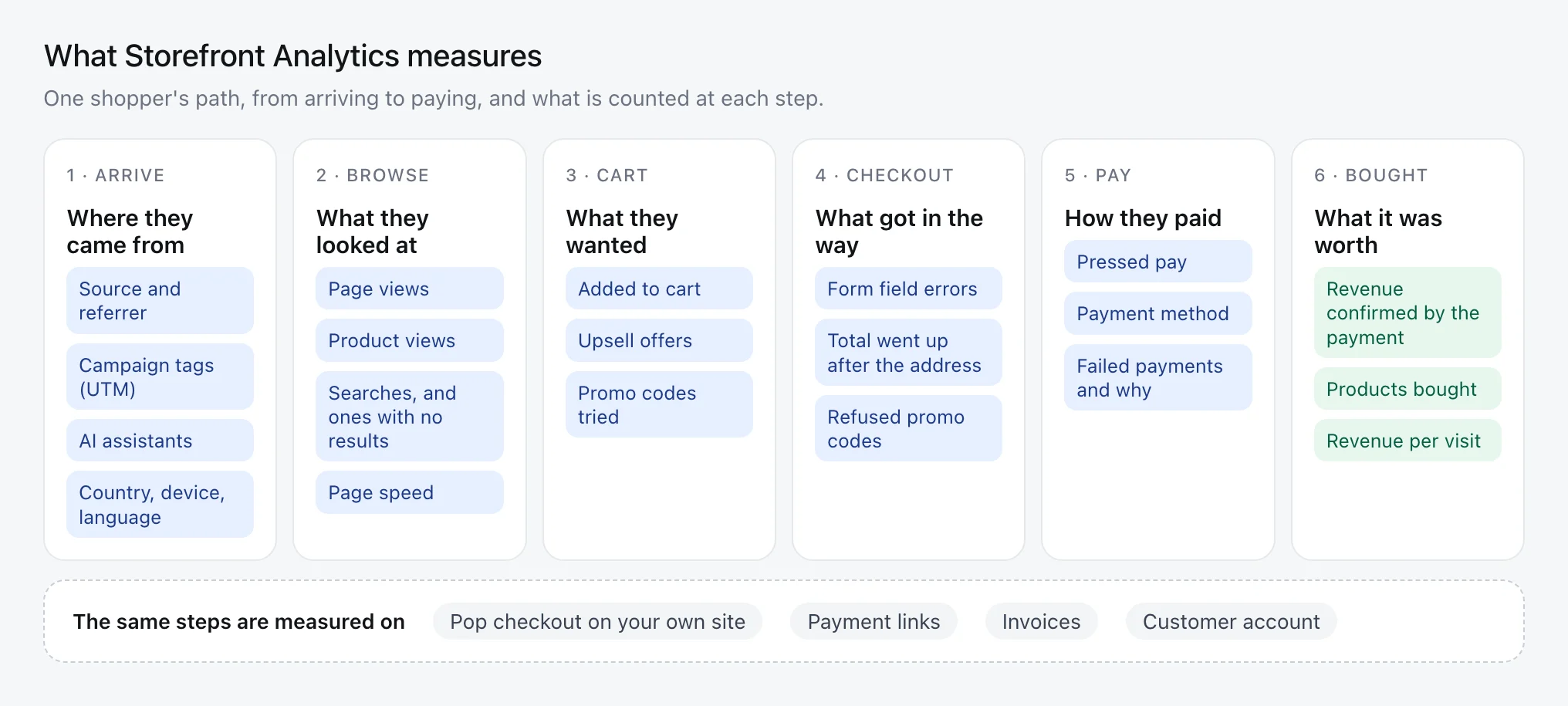
The same steps are measured on the other ways a shop sells: the pop checkout that opens on your own website, payment links, invoices and the customer account. You'll find the report in the Comecero dashboard under Analytics → Storefront Analytics, and its key figures also appear on your main Dashboard.
The numbers that matter first
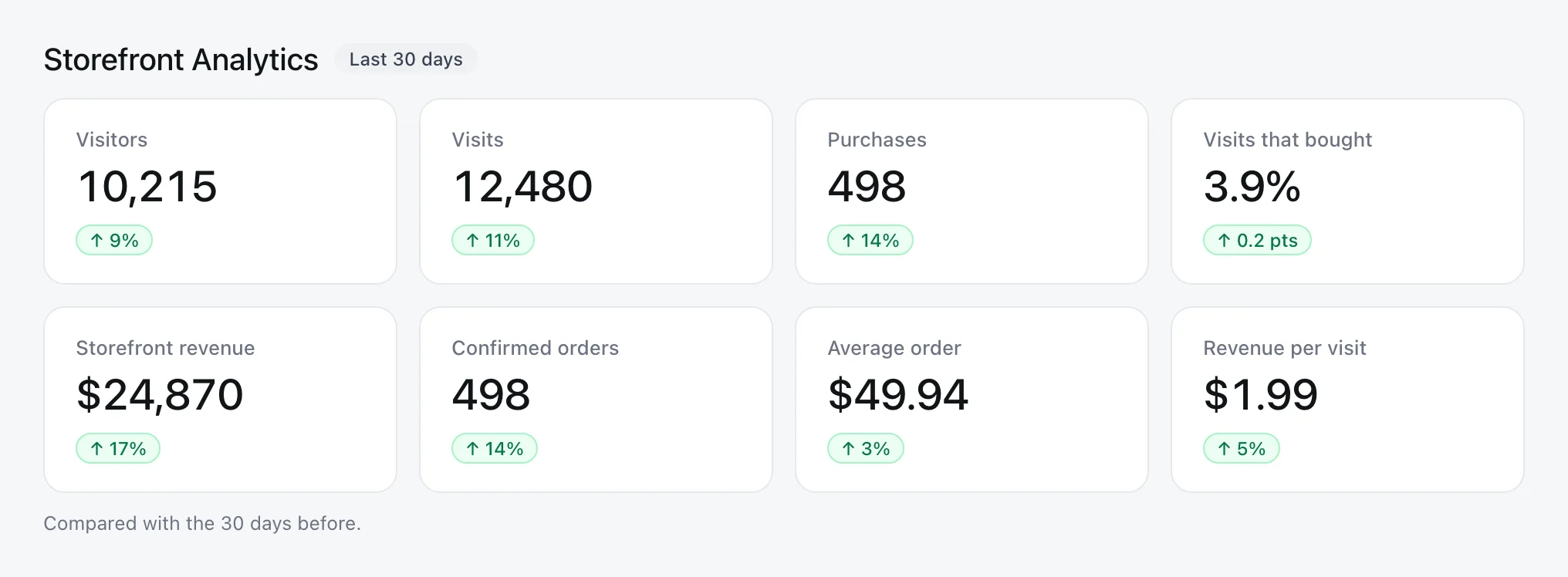
The top of the report answers the basic questions for the period you pick, each compared with the period before:
What each number means
| Number | What it means | How it is worked out |
|---|---|---|
| Visitors | Different people who came to the shop | Told apart on the server, without cookies |
| Visits | Separate trips to the shop | One person can make several visits |
| Page views | Pages shown | Every page, including cart and checkout |
| Purchases | Payments that went through | Each payment counted once |
| Visits that bought | How often a visit ends in a sale | Visits with a purchase ÷ all visits |
| Storefront revenue | Money from storefront sales | Confirmed payments, in your reporting currency |
| Confirmed orders | Purchases Comecero has confirmed | Checked against the real payment |
| Average order | Typical order size | Storefront revenue ÷ confirmed orders |
| Revenue per visit | What one visit is worth | Storefront revenue ÷ visits |
Revenue per visit is the single most useful number in ecommerce. It moves when conversion changes and when order size changes, so it catches improvements that either number alone would miss. In the example shop, $24,870 from 12,480 visits is $1.99 per visit. If a campaign costs more than $1.99 per visit and its visitors behave like the average, it loses money.
From visit to purchase
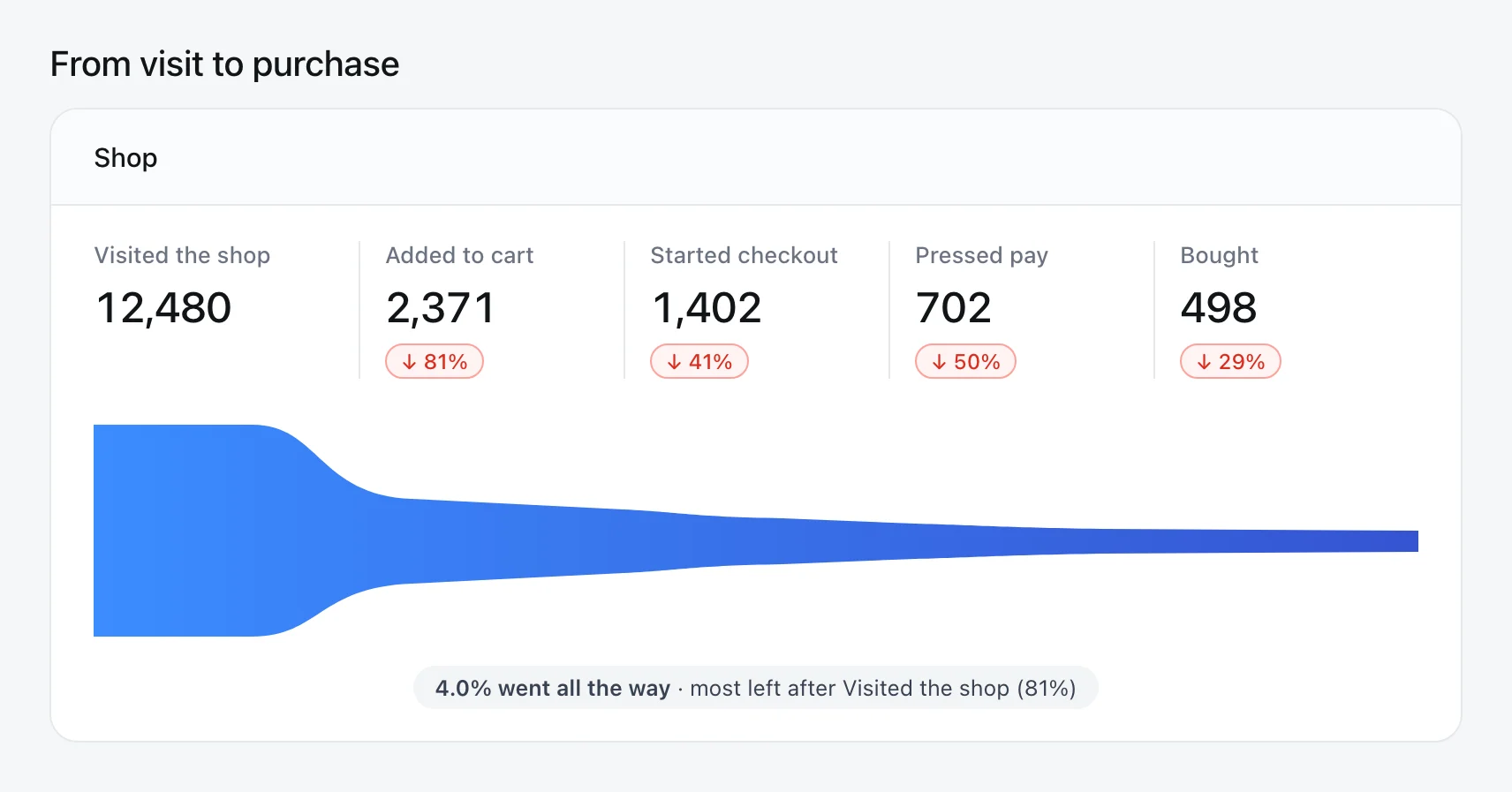
The funnel shows how many visits reached each step, in order: visited the shop, added to cart, started checkout, pressed pay, and bought. The red figures show how many dropped off before each step.
There are four funnels, one for each way a shop sells:
- Shop: the classic store and cart journey.
- Pop checkout: the checkout that opens on top of your own website, from opened to paid.
- Payment page: payment links, from opened to paid.
- Invoices: invoices you send, from opened to paid.
How to read a funnel: a worked example
Take the example shop and turn each step into a rate:
| Step | Visits | Share of the step before |
|---|---|---|
| Visited the shop | 12,480 | |
| Added to cart | 2,371 | 19% |
| Started checkout | 1,402 | 59% |
| Pressed pay | 702 | 50% |
| Bought | 498 | 71% |
Now ask what a small improvement at each step is worth, with everything else unchanged:
- Add to cart from 19% to 21% gives about 550 purchases instead of 498. That's roughly 52 more orders, or about $2,600 a month at a $49.94 average order.
- Pressed pay to bought from 71% to 80% gives about 562 purchases. That's 64 more orders, or about $3,200 a month, and it only needs fixing what happens after the shopper has already decided to pay.
The funnel tells you where the leak is. The next section tells you what caused it.
Why shoppers did not buy
This is the part most analytics tools can't show you. For every checkout that was started but not finished, Storefront Analytics records what went wrong along the way:
- A form field was wrong, and which field (postal code, VAT number, phone and so on).
- The total went up after the address, because tax or shipping appeared that the shopper hadn't seen yet.
- A payment failed, and why, as the gateway explained it.
- A promo code was refused, and which codes people tried.
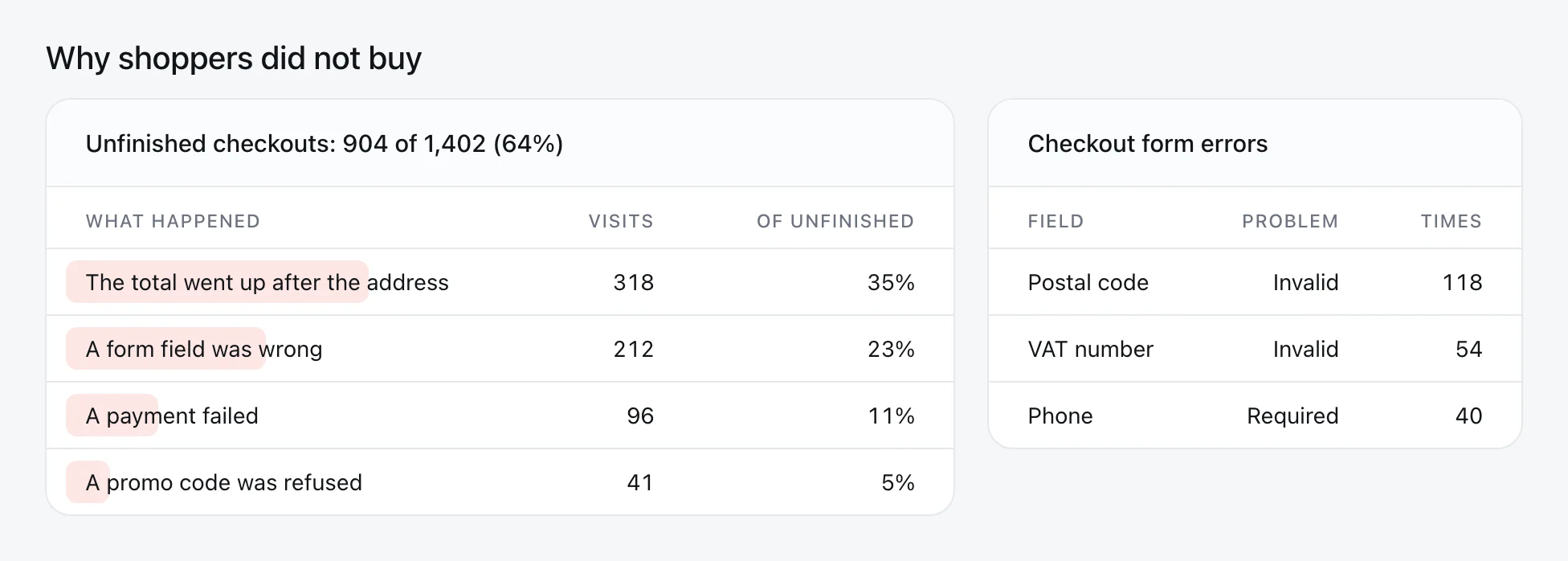
Industry research backs up what this table tends to show. The Baymard Institute, which has studied checkout usability for years, puts the average documented cart abandonment rate at around 70%, and extra costs such as shipping, tax and fees are the most common reason shoppers give for leaving. The difference is that Baymard tells you what happens across the industry. Storefront Analytics tells you what happens in your own checkout, with counts.
In the example, more than a third of unfinished checkouts saw the total go up after entering an address. That's a pricing presentation problem, not a traffic problem: show shipping and tax earlier, or offer free shipping above a threshold. The form errors table shows 118 invalid postal codes, which often means the field is too strict for some countries.
Payment methods
The payment methods table shows, for each method, how many payments went through, how many failed, and the success rate.
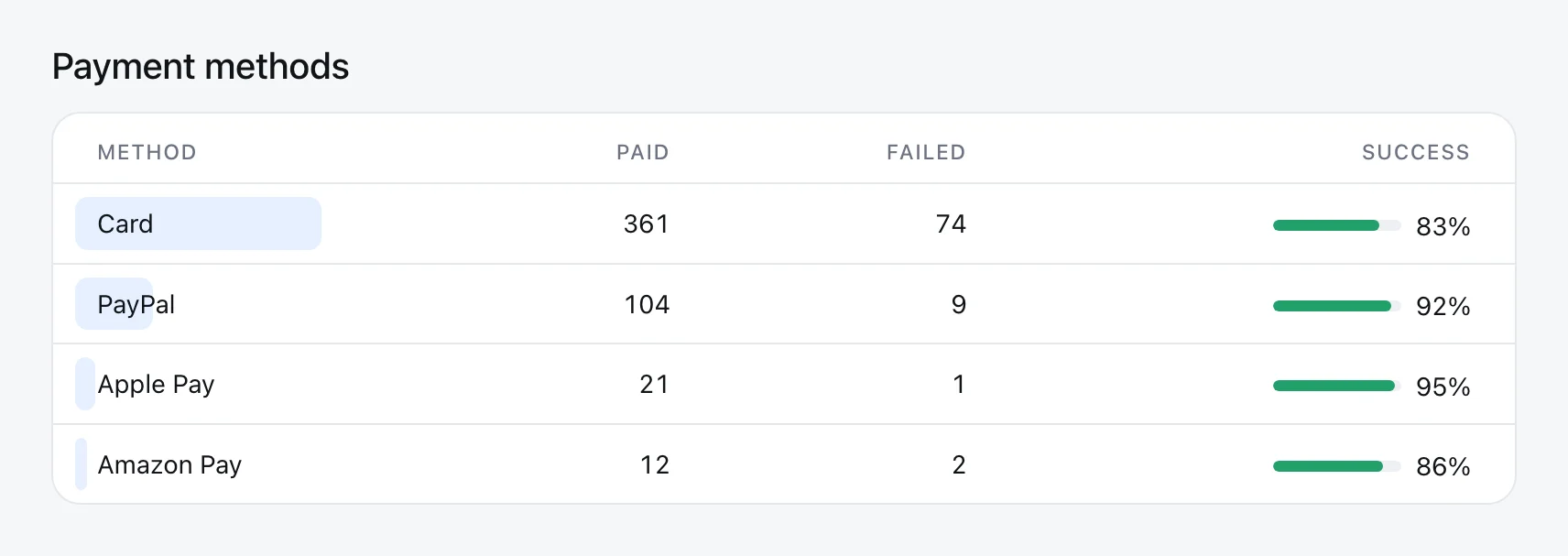
In the example, PayPal succeeds 92% of the time and cards 83%. A gap like that is worth a look. Card failures can come from bank declines, mistyped details or fraud checks, and the Failed payments table shows which reasons come up most. If one method fails much more than the others, or shoppers in one country keep leaving at "pressed pay", the fix may be as simple as offering the method they expect.
Where visits came from, measured in money
Most source reports stop at visits. Storefront Analytics carries each visit through to the order, so every source shows visits, conversion, revenue and revenue per visit. Campaign tags (UTM) on your links are picked up automatically, so a newsletter or an ad campaign gets its own row under Campaigns.
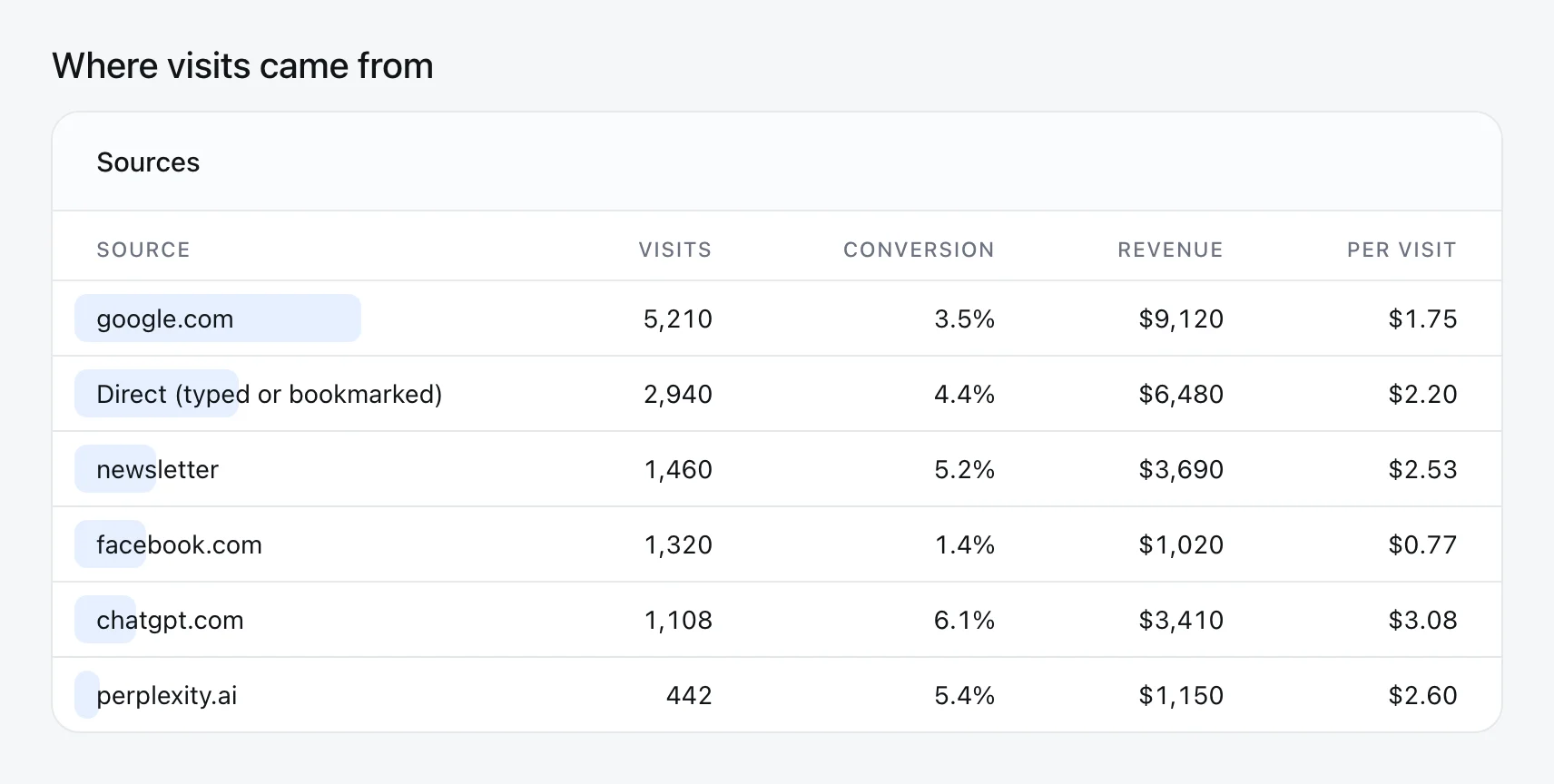
Look at the example. Facebook sends a lot of visits but earns $0.77 per visit, less than half of what search earns. The newsletter earns $2.53. Ranked by visits, Facebook looks like a top channel. Ranked by revenue per visit, it's the weakest.
Is AI search sending you buyers?
More and more shoppers start with an AI assistant instead of a search box. They ask ChatGPT, Perplexity, Gemini or Copilot for a recommendation, and the assistant links to a shop. Those visits are easy to miss in tools built around search keywords.
In Storefront Analytics, a visit that arrives from an AI assistant shows up under that assistant's name in Where visits came from, with its own conversion and revenue per visit, just like Google or a newsletter. Look for names such as chatgpt.com, perplexity.ai, gemini.google.com and copilot.microsoft.com. ChatGPT also tags many of its links with a campaign tag, so those visits can appear under Campaigns too.
In the example shop, chatgpt.com sends fewer visits than search, but each visit is worth $3.08. That pattern is common for a simple reason: a shopper who asked an assistant what to buy often arrives already knowing what they want.
One honest caveat: some apps open links without saying where they came from. Those visits count as Direct, in our report and in every other analytics tool. Many assistants do pass it along on the web, so the trend is still easy to see.
How to earn more visits from AI assistants
Assistants recommend pages they can read and quote. Every Comecero storefront already publishes the basics AI tools and search engines look for: a sitemap, a robots file, an llms.txt file that describes the shop, and structured product data on product pages. On top of that, what helps most is clear writing:
- Name products plainly, with what they are and who they're for.
- State the price, the format and what's included on the product page.
- Answer the questions people ask, such as how it compares, how delivery works, and what the refund policy is.
- Keep product pages fast, because the visit an assistant sends still has to load.
Then watch the AI rows in your sources. If their revenue per visit is high, they deserve the same attention as your best search pages.
Who visited
The visitor breakdown shows country, device, browser and system, plus the shop language people saw and the language their browser asked for.
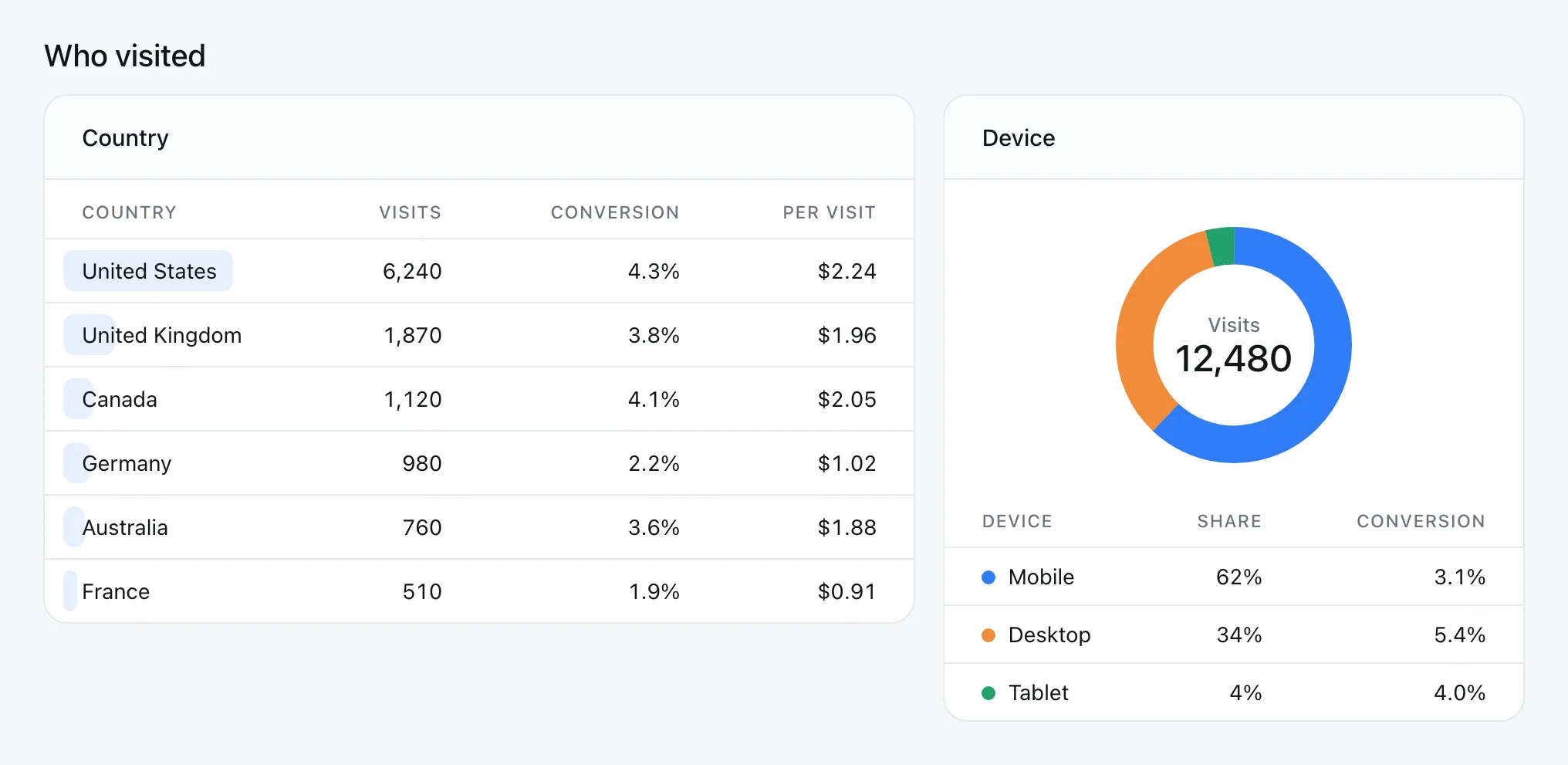
Two things stand out in the example. First, most visits are on mobile, but mobile converts at 3.1% against 5.4% on desktop, so the mobile checkout is where the next gains are. Second, Germany and France convert at about half the rate of other countries. That often comes down to language, local payment methods or prices shown in the wrong currency. Compare the shop language with the browser language: if many visitors' browsers ask for German and your shop only speaks English, that's your next translation.
Products and searches
The products table shows how often each product was viewed, added to the cart and bought, and its view to purchase rate. The searches table shows what shoppers searched for on your store, and which searches found nothing.
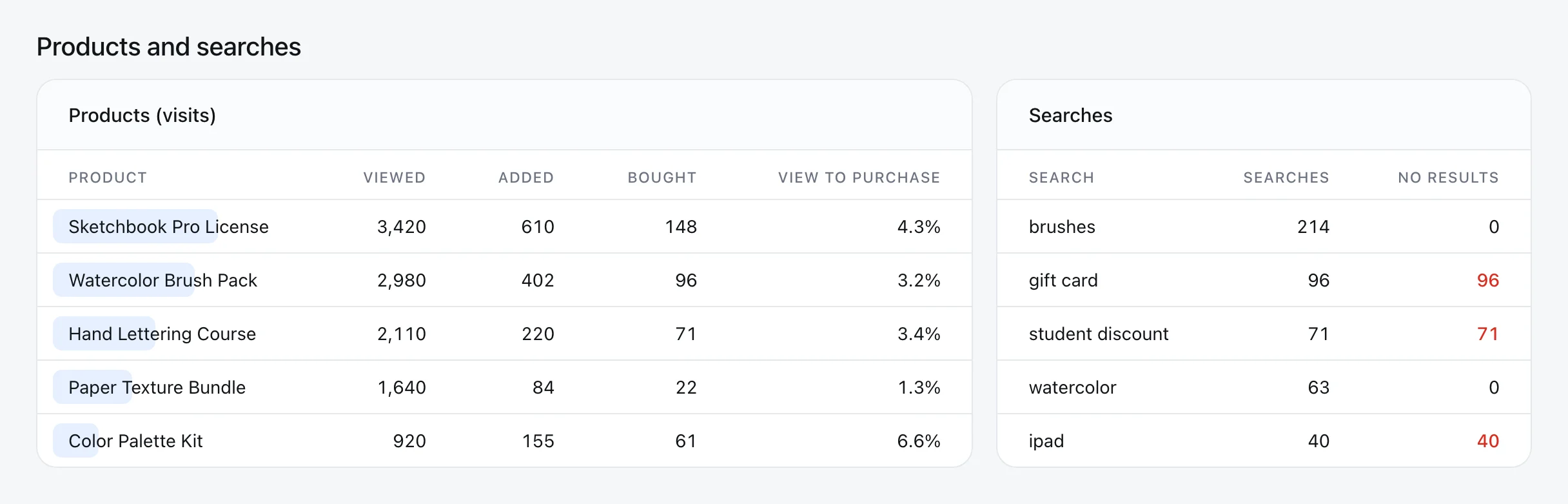
Read it as a list of jobs:
- Many views, few sales (Paper Texture Bundle, 1.3%): the page, the price or the photos aren't doing their job.
- Few views, strong sales (Color Palette Kit, 6.6%): a hidden winner. Feature it on the home page or in emails.
- Searches with no results (gift card, student discount, ipad): shoppers telling you exactly what they wanted. Add the product, a page that answers the question, or a search synonym.
The report also shows upsell offers, how often they were shown and accepted, and pop checkout by page, which pages on your own website open the pop checkout and which of them convert.
Site health: speed you can see by page
A slow product page costs sales long before anyone complains. Storefront Analytics measures how fast pages feel to real shoppers, by page type, using the same Core Web Vitals Google uses to rate page experience. It also counts errors shoppers ran into.
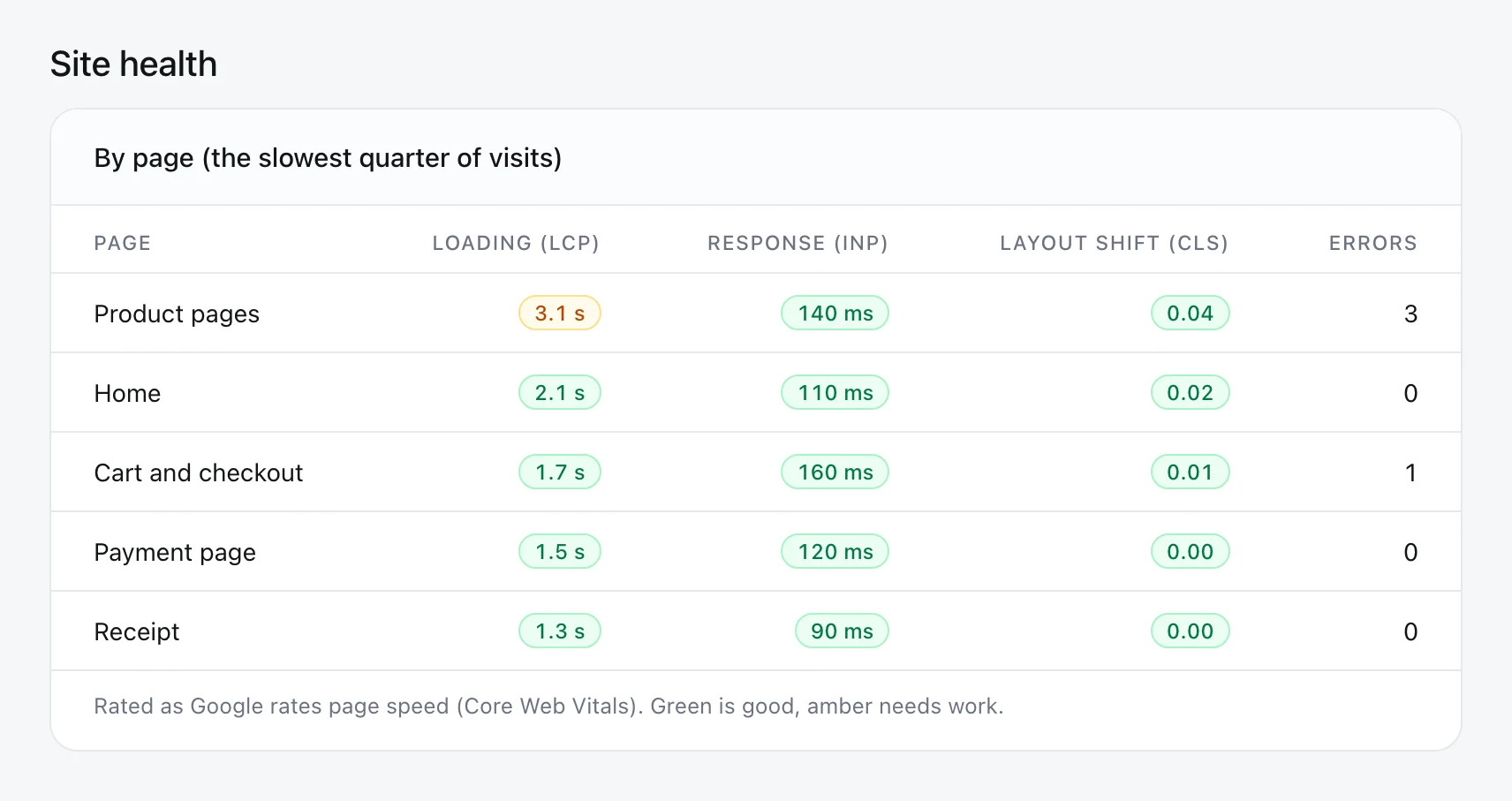
The report rates the slowest quarter of visits, not the average, because the average hides the people having a bad time. That matches how Google assesses Core Web Vitals, at the 75th percentile of page loads. Google's thresholds are:
| Metric | What it measures | Good | Poor |
|---|---|---|---|
| LCP (Largest Contentful Paint) | How fast the main content appears | 2.5 s or less | Over 4 s |
| INP (Interaction to Next Paint) | How fast the page responds to a tap or click | 200 ms or less | Over 500 ms |
| CLS (Cumulative Layout Shift) | How much the page jumps around while loading | 0.1 or less | Over 0.25 |
In the example, product pages take 3.1 seconds to show their main content for the slowest quarter of visits, so they "need work", while checkout is fast. That's a clear brief: compress product images and trim anything heavy that loads before them.
Revenue you can trust
Most analytics tools record revenue from the browser. When the thank you page loads, a script reports "this order was worth $49". That sounds fine until you meet the edge cases: ad blockers stop the script, a reloaded receipt reports the order twice, a currency is reported wrongly, or someone sends a fake purchase on purpose.
Storefront Analytics never takes the browser's word for money:
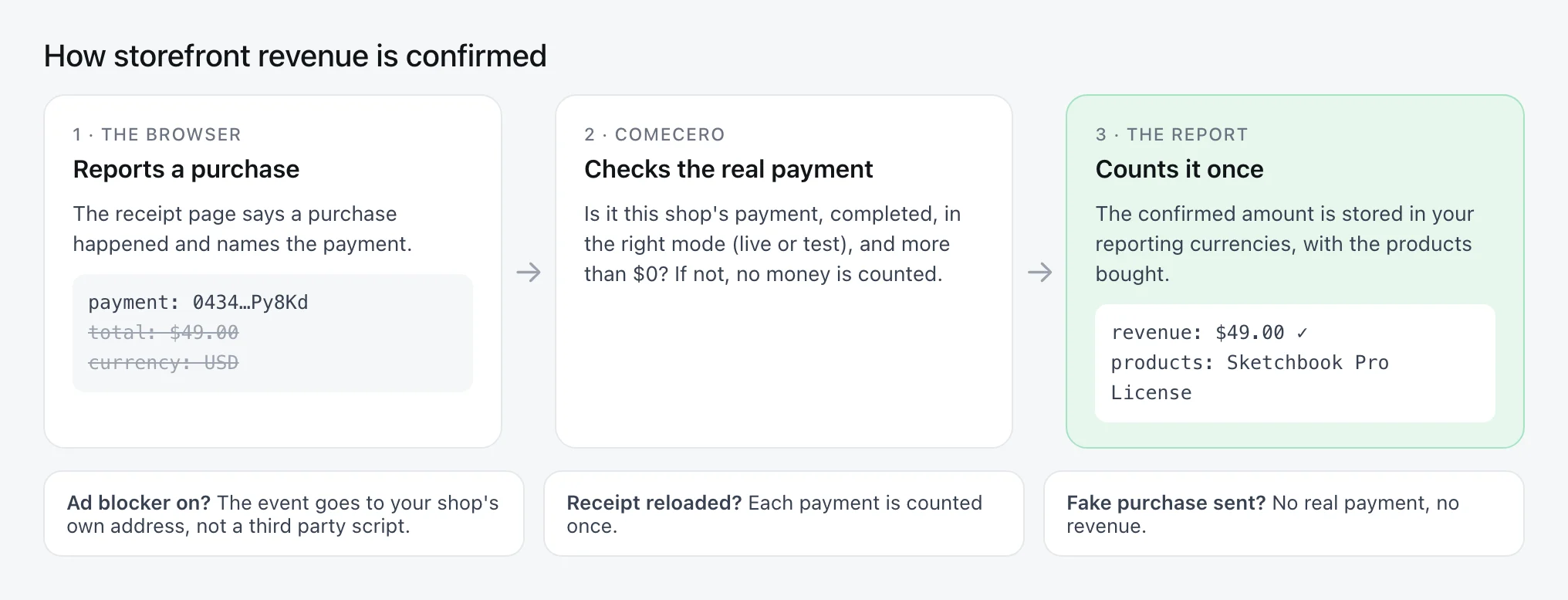
When a purchase is reported, Comecero checks it against the actual payment and records the confirmed amount. Each payment is counted once, test payments are kept apart, refunds are shown on their own, and totals appear in your account's reporting currencies. In other words, storefront revenue follows the same rules as your Sales report, so the two agree.
Privacy by design
Storefront Analytics was built to be useful without collecting more than it needs.
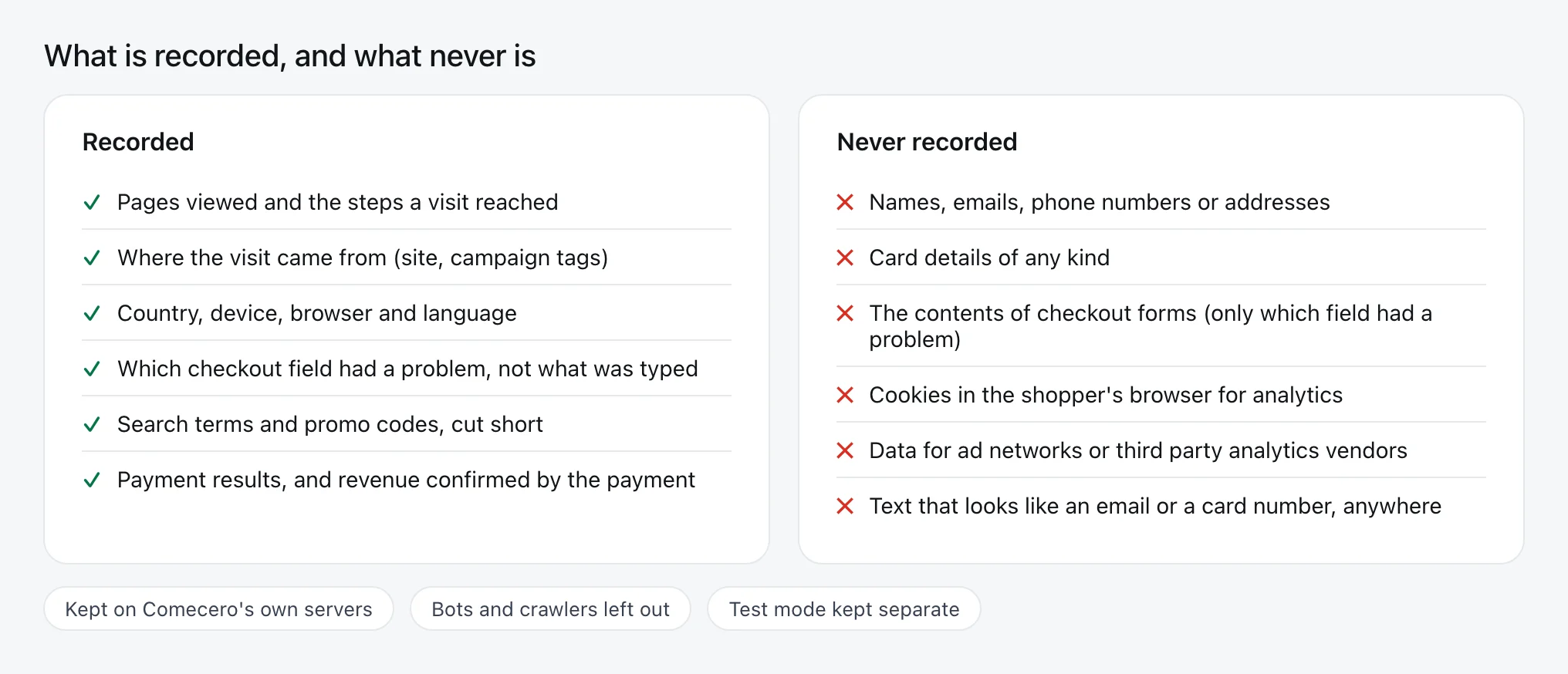
- No cookies. Visits are told apart on the server, so nothing is stored in the shopper's browser for analytics.
- No personal details. No names, emails, addresses or card details are recorded. Text that looks like an email address or a card number is thrown away before anything is stored.
- Your data stays with us. Events go to your shop's own address and are kept on Comecero's own servers. They aren't sent to an ad network or a third party analytics vendor.
- Test mode stays separate. Test visits and test orders never mix with live figures.
Obvious bots and crawlers are left out of the counts, so the numbers reflect people.
How it compares with tag-based analytics
You don't have to choose. Many merchants keep their existing analytics for marketing and use Storefront Analytics for the store and checkout. Here is where they differ:
| Typical tag-based analytics | Comecero Storefront Analytics | |
|---|---|---|
| Setup | Add a script, then configure ecommerce events | Built in, nothing to install |
| Cookies | Usually sets visitor cookies | No cookies |
| Revenue | Reported by the browser | Confirmed against the real payment |
| Ad blockers | Third party scripts are often blocked | Sent to your shop's own address |
| Why checkout failed | Needs custom setup | Built in: form errors, price jumps, failed payments, refused codes |
| Payment method results | Not available | Payments and failures by method |
| Page speed by page type | Separate tool | Built in, rated like Core Web Vitals |
| Where the data lives | With the analytics vendor | On Comecero's own servers |
A 15 minute weekly review
You don't need to live in the report. Once a week, this is enough:
- Revenue per visit: up or down on last week? If down, check whether conversion or average order moved.
- The leakiest funnel step: has it changed since last week?
- Why shoppers did not buy: is one reason growing?
- Payment methods: is any method's success rate falling?
- Sources and campaigns: which one earned the most per visit, and which the least?
- AI assistants: are visits from ChatGPT, Perplexity and others growing?
- Searches with no results: anything worth adding to the shop?
- Site health: is any page type rated "needs work" or "poor"?
Pick one thing to change, make the change, and look at the same row next week.
Getting started
If your shop runs on the Comecero storefront, there's nothing to set up. Sign in to the Comecero dashboard and open Analytics → Storefront Analytics. Pick a period (last 7 days, last 30 days, this month, last month, or your own dates), and switch currency if your account reports in two.
A few details worth knowing:
- Figures refresh every few minutes.
- One report covers up to 92 days.
- Data is counted from 25 October 2026, when tracking began.
New to Comecero? See pricing, book a 30 minute demo, or contact our team to see Storefront Analytics with your own shop.
Frequently Asked Questions
Everything else you might be wondering about.